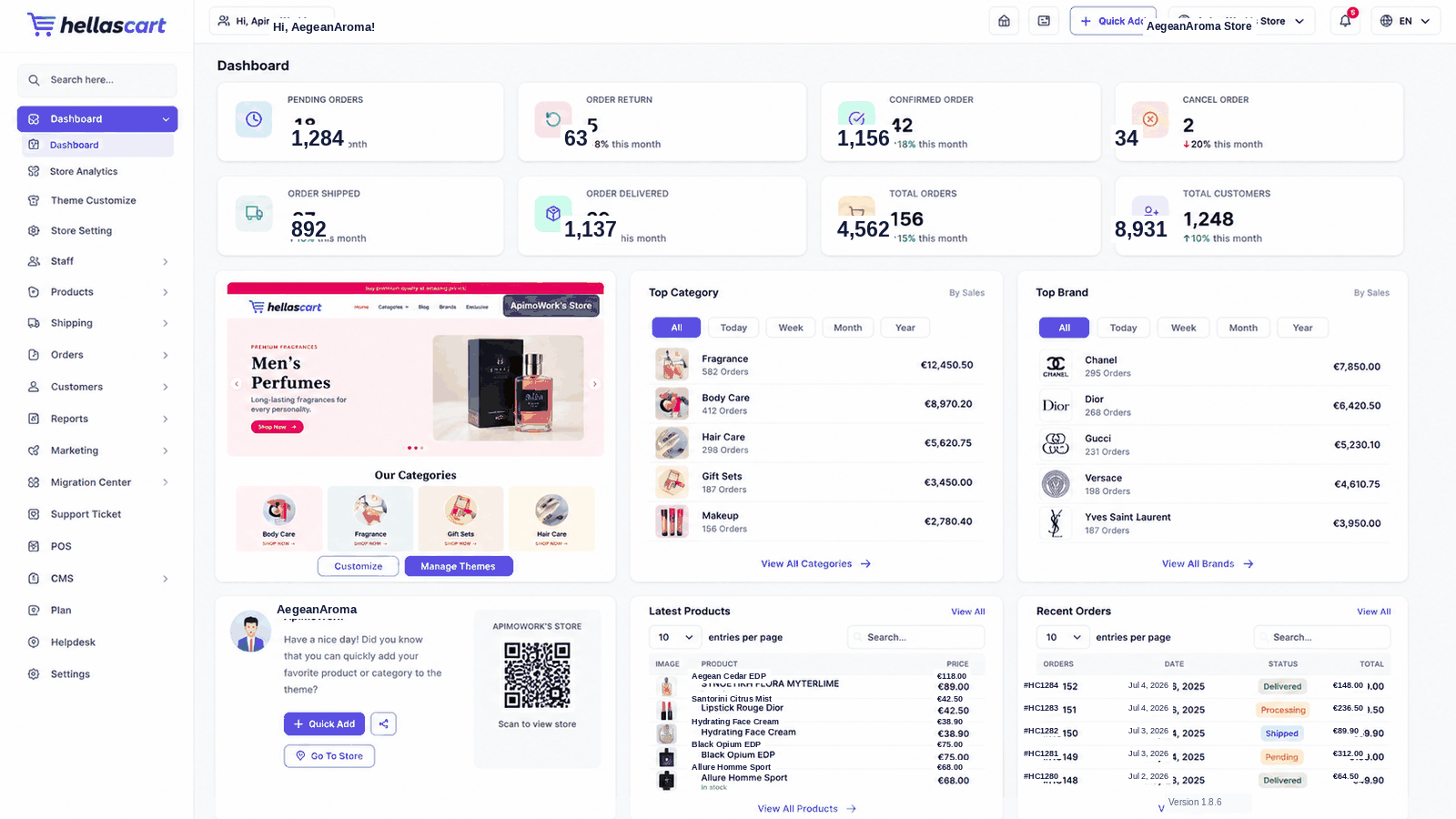
The Dashboard is your home screen after you log in. It gives you a live snapshot of how your store is doing — money earned, new orders, product counts and customers — so you always know what needs attention.
Purpose
Use the Dashboard as your daily starting point. Open it first thing each day to spot new orders, low stock and anything that needs action.
Understanding the layout
Every HellasCart admin screen shares the same three zones:
- Left sidebar — the main navigation menu.
- Top bar — search, language, notifications and your profile.
- Main area — statistics, charts and recent activity.
TipUse the search box at the top of the sidebar to jump to any page instantly, instead of scrolling the menu.
Reading your statistics
The cards at the top show your key totals at a glance:
| Card | What it means |
|---|---|
| Total Orders | How many orders you have received. |
| Total Revenue | Money earned from paid orders. |
| Total Products | Products in your catalogue. |
| Total Customers | Registered buyers. |
Below the cards you will find a sales chart, your top products and categories, and a list of your most recent orders.
Working with recent orders
- Find the order in the Recent Orders list.
- Click it to open the full order.
- Update its status or print its invoice.
Best PracticeProcess new orders every day so customers are never left waiting. Compare your statistic cards week to week to catch growth — or a drop — early.
WarningNumbers refresh when the page loads. If a figure looks wrong right after a change, refresh the page to pull the latest data.