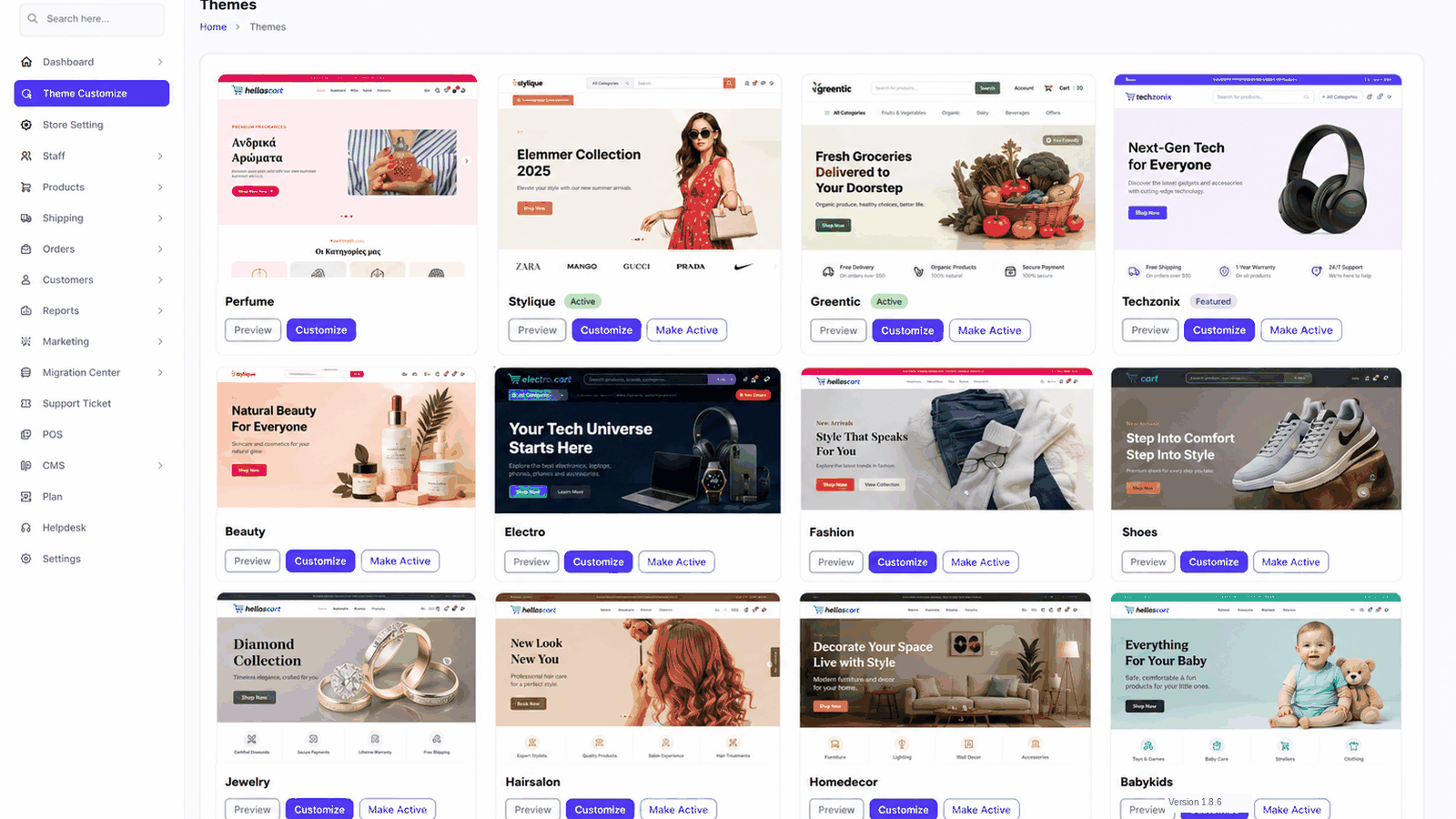
Theme Customize is where you design how your storefront looks. HellasCart ships with a large library of professionally designed themes, each with its own homepage, header, footer and colour palette. You pick one, make it active, then edit its content page by page.
Purpose
Use this section at setup to choose your look, and any time you want to refresh your design or edit homepage content.
Selecting a theme
- Open Theme Customize in the sidebar.
- Browse the theme cards — each shows a live preview image.
- Hover a theme and click Preview to open a demo store.
- Click the theme you want to select it.
TipPick a theme that matches your product type — fashion, electronics, beauty and so on. The demo content is styled for that niche, so it looks right immediately.
Activating a theme
- On the theme card, click Activate.
- Confirm if prompted.
- Open your storefront to check the result.
WarningChanging themes changes the layout, not your products — your catalogue always stays safe. Only one theme is active at a time.
Editing your pages
Once a theme is active, open Pages to edit each part of the storefront:
- Home Page — hero slider, featured sections, banners and text. Toggle sections On/Off and reorder them.
- Header — logo, main menu, announcement bar and icons.
- Footer — link columns, social icons and the copyright line (the year updates automatically).
- Contact, Blog, Article & Privacy Policy — style each supporting page.
After editing any page, click Save, then open your storefront in a new tab and refresh to see the change.
Global theme settings
The theme's Settings section controls colours, fonts and section toggles that apply across the whole storefront.
Best PracticeChange one section, save, and check it before moving on. Always replace demo placeholder wording with your own text, and test colour changes on a product page too — light text on a light background is hard to read.