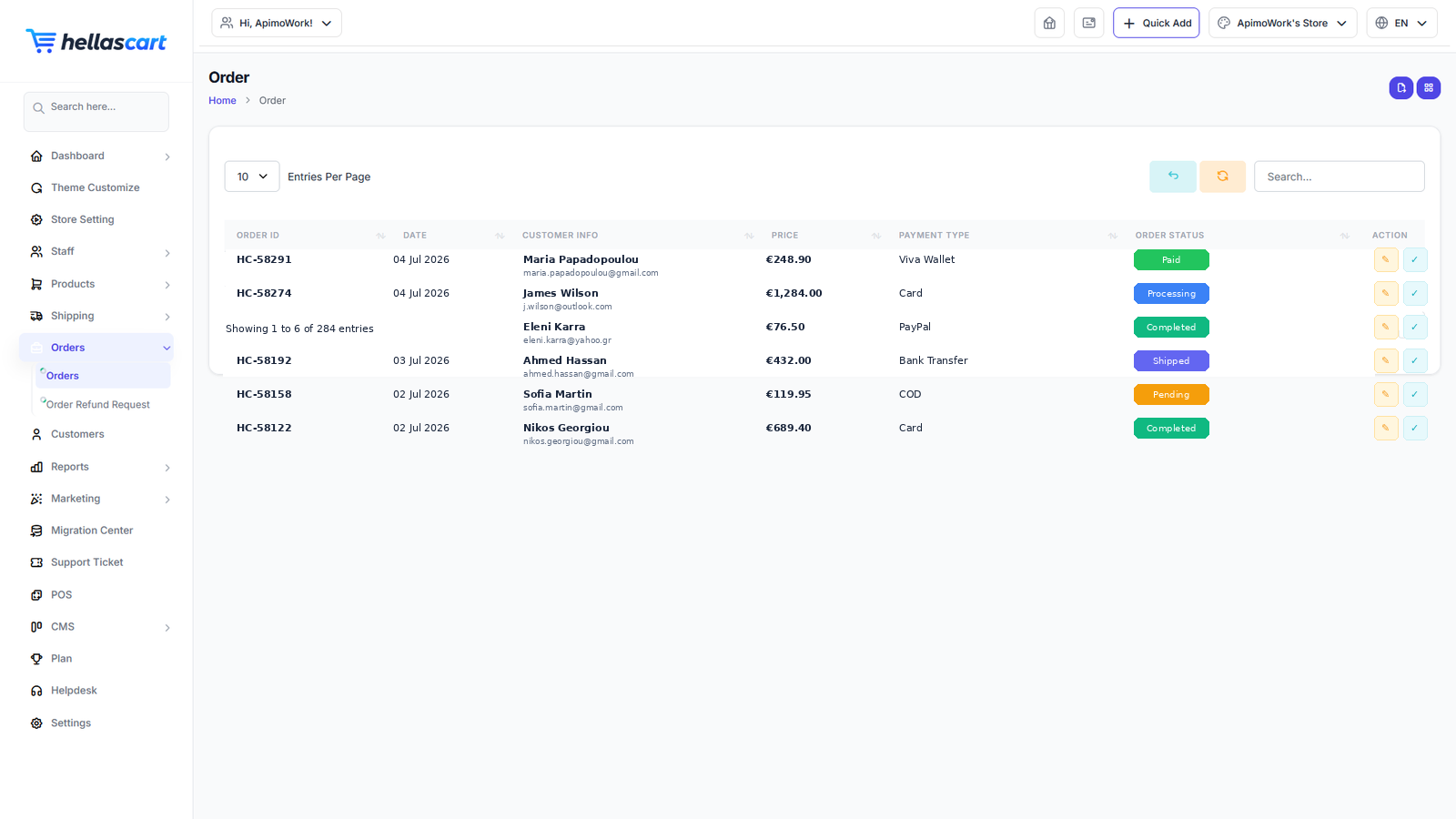
Orders is where you fulfil sales. You view an order, update its status, take payment, print an invoice or shipping label, and handle refunds.
Viewing orders
- Open Orders → Orders.
- Use search and filters to find an order.
- Click View to open its full detail.
Processing an order
Move each order through its journey: new → processing → shipped → delivered.
- Open the order.
- Change the order status.
- Add a tracking number if you are shipping.
- Click Save — the customer is notified if emails are enabled.
TipYou can add a private note for your team, or assign an order to a delivery person, right from the order page.
Invoices & shipping labels
- Open the order.
- Click Invoice to view or print the invoice PDF.
- Click Shipping Label to print the parcel label.
Invoice details come from Store Setting → Company & Contact, so make sure those are complete.
Refunds
- Open Orders → Order Refund Request.
- Review the request and the items.
- Approve or reject, process the refund amount, and restock if needed.
WarningEnable refunds first under Settings → Refund Settings. Only mark an order as paid when the money has truly arrived — this matters most for bank transfers.
Best PracticeUpdate order status promptly — customers watch it closely. Adding tracking numbers dramatically reduces "where is my order?" messages.