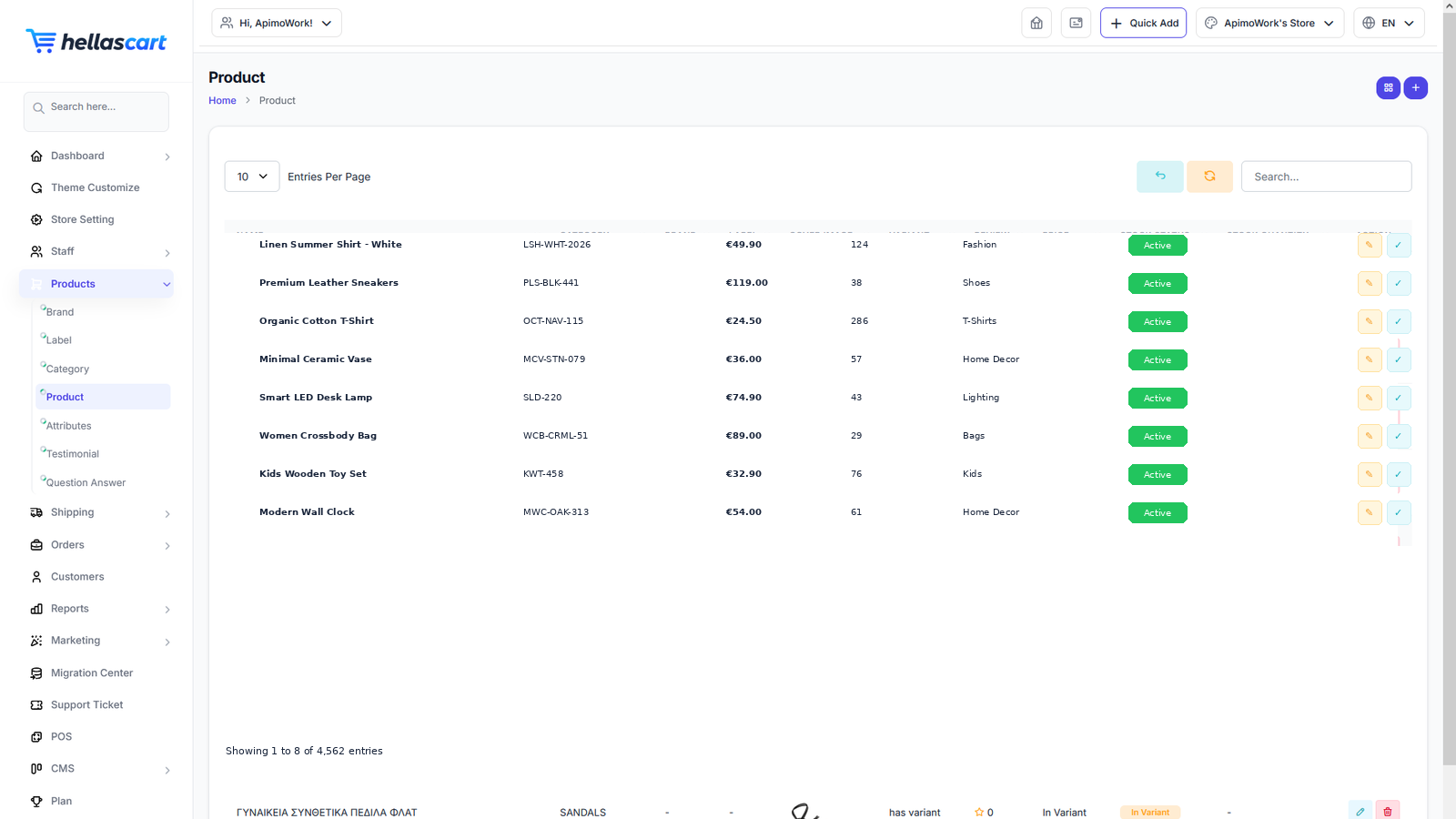
Your catalogue lives under Products. Build it in this order for the fastest setup: Brands → Labels → Categories → Attributes → Products. This article covers creating and publishing products, including variants, inventory, images, pricing and SEO.
Create a product
- Open Products → Product → Create.
- Enter the name, category, brand and price.
- Add a description and upload images (cover image first).
- Set stock and status.
- Click Save.
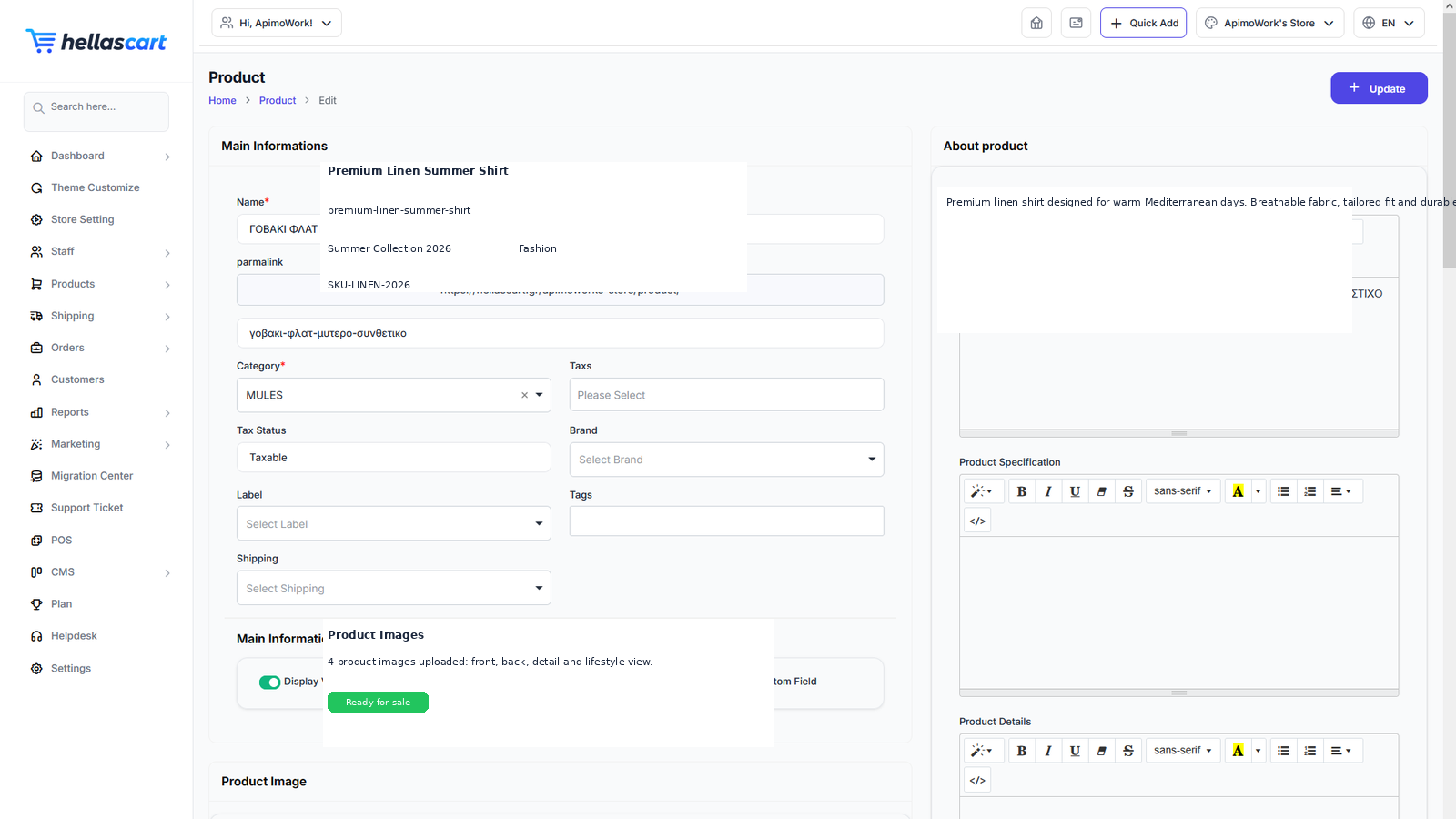
1Name
2Category & Brand
3Price & Sale Price
4Description
5Images
6Save Button
TipIf the AI helper is enabled in Settings, use it to draft product descriptions in seconds, then edit to taste.
Variants (sizes & colours)
Sell one product in several options, each with its own price and stock.
- On the product form, set Product Type = Variable.
- Choose the attributes (for example Size and Colour).
- Generate the combinations.
- Set price and stock for each combination, then Save.
WarningGive each variant its own stock number, or you may oversell an option that is actually out of stock. Set up your attributes before creating variable products.
Inventory, images & pricing
- Inventory — enable stock tracking, enter the quantity, and set a low-stock threshold so you get warned before you sell out.
- Images — upload the cover image first, then a gallery. Use clear, well-lit photos of the same size on a plain background.
- Pricing — enter the regular price, then a lower sale price to show a discount.
SEO & publishing
- Set a clean, keyword-rich slug (web address) and description.
- Set Status = Active to make the product visible.
- Click Save.
Best PracticeKeep a product inactive until its images, price and stock are all ready — then publish. Include the product name and key feature in the first sentence of the description for better search results.