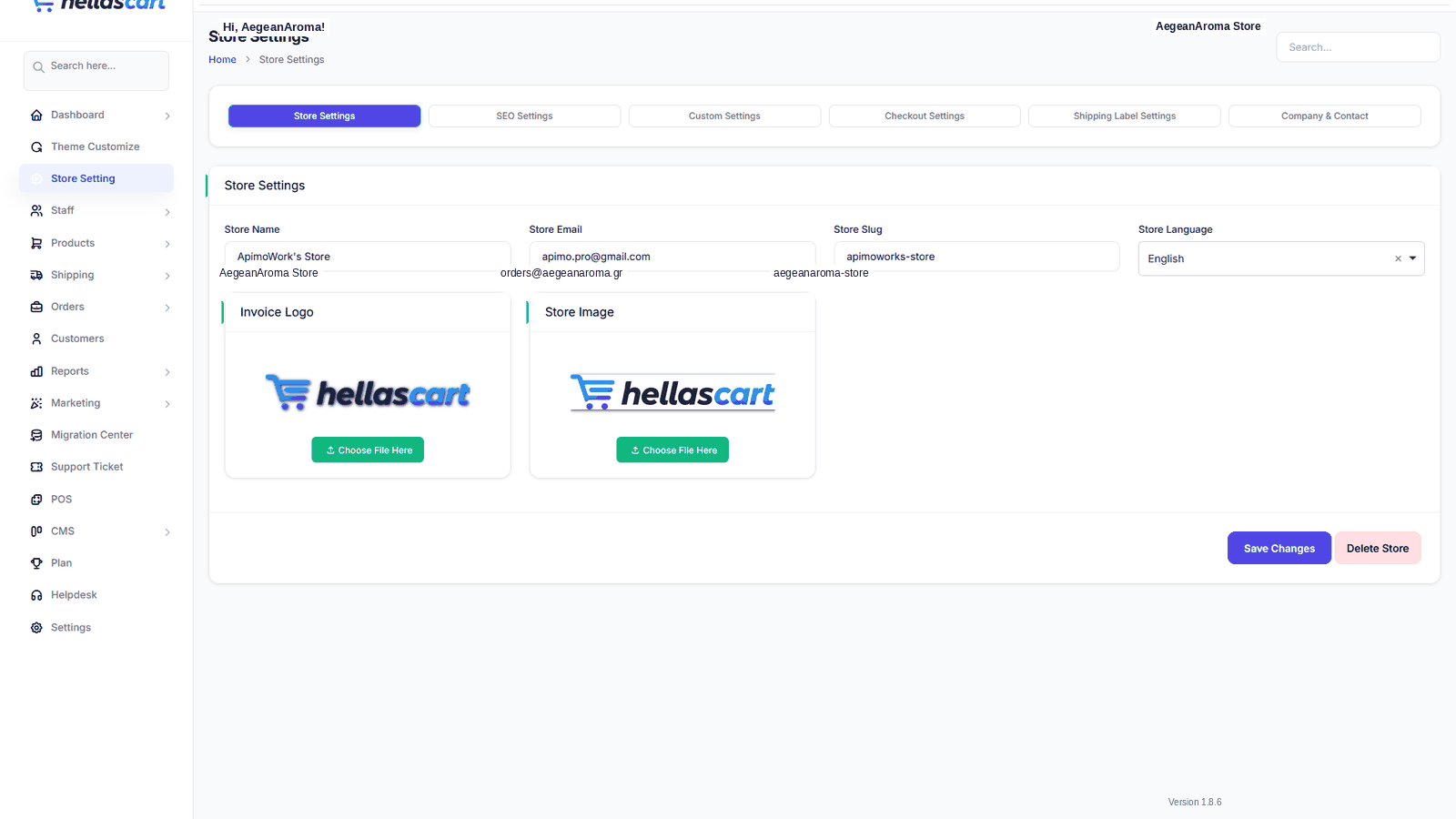
Store Setting is where you set your store's identity: logo, favicon, company & contact details, SEO, checkout rules and shipping-label information. It is organised into tabs. This article also covers the key Settings tabs you need before launch — SMTP email and payments.
Store Settings tab — logo & favicon
- Open Store Setting → Store Settings.
- Upload your Logo and Favicon.
- Set the store name and default language.
- Click Save.
TipUse a transparent PNG logo so it works on any header colour, and a small square favicon (for example 512×512) so it stays sharp in the browser tab.
Company & Contact tab
Your official company details appear on invoices, the contact page and emails.
- Open the Company & Contact tab.
- Fill in company name, VAT/tax number, address, email and phone.
- Click Save.
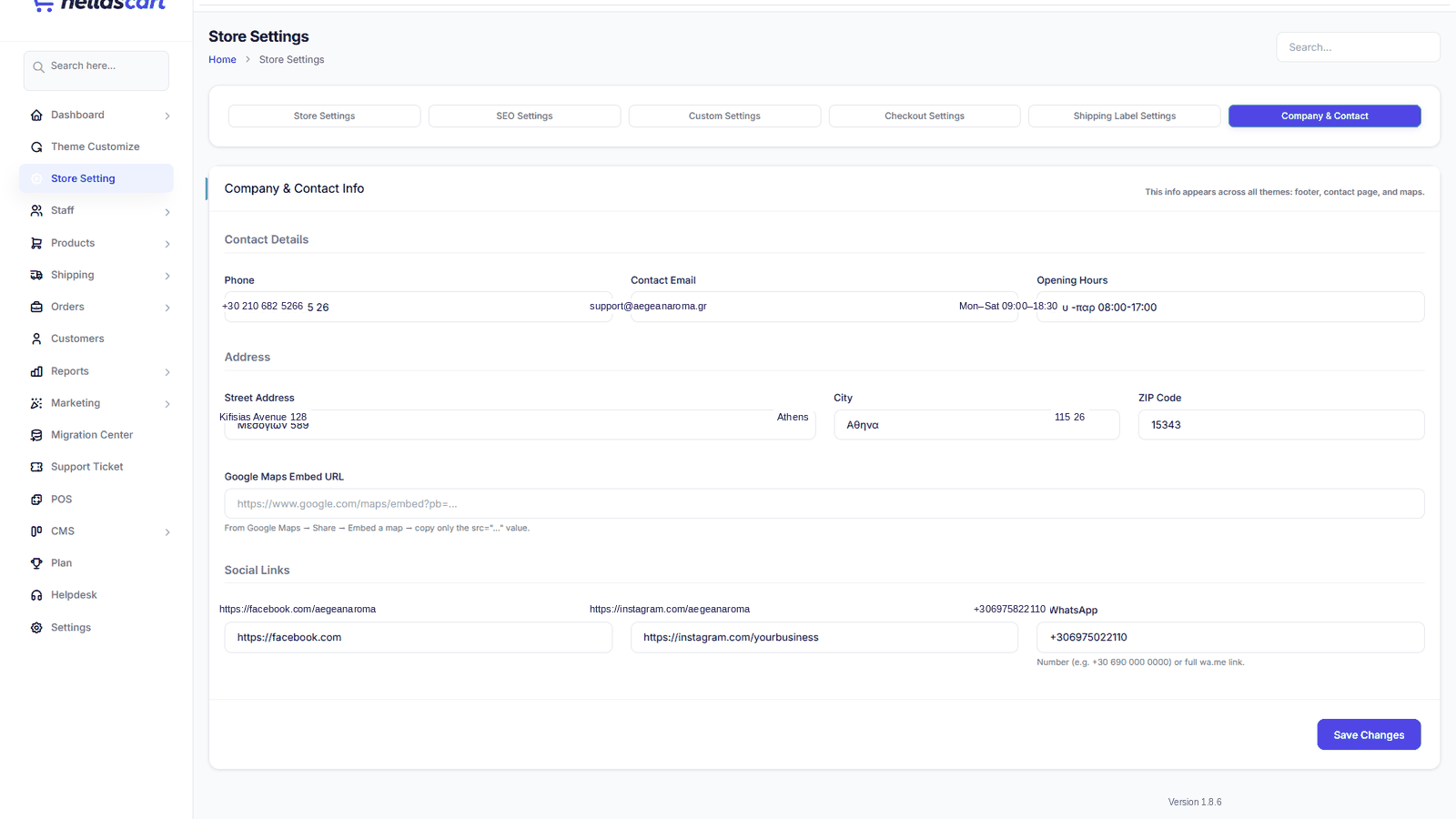
1Company Name
2VAT / Tax Number
3Address
4Email & Phone
5Save Button
Brand Settings
Under Settings → Brand Settings you set your platform brand basics — name and identity fields used across the admin.
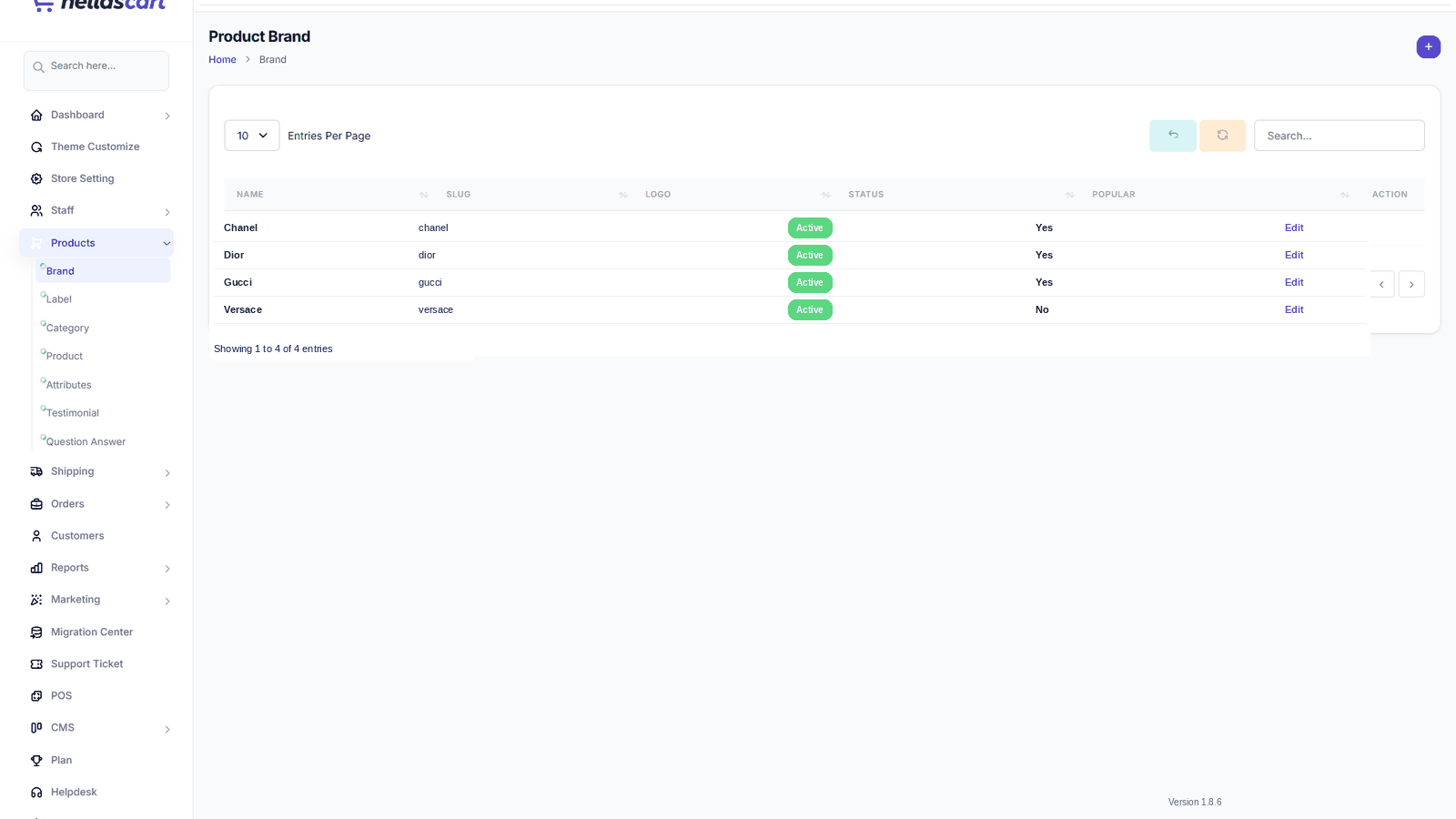
1Brand Name
2Logo / Identity
3Support Email
4Contact Number
5Save Button
SMTP / Email Settings
Connect your email account so HellasCart can send order confirmations, invoices and notifications.
- Open Settings → Email Settings.
- Enter your SMTP host, port, encryption (TLS/SSL), username and password.
- Set the from address and from name.
- Click Save, then use Send Test Mail to confirm.
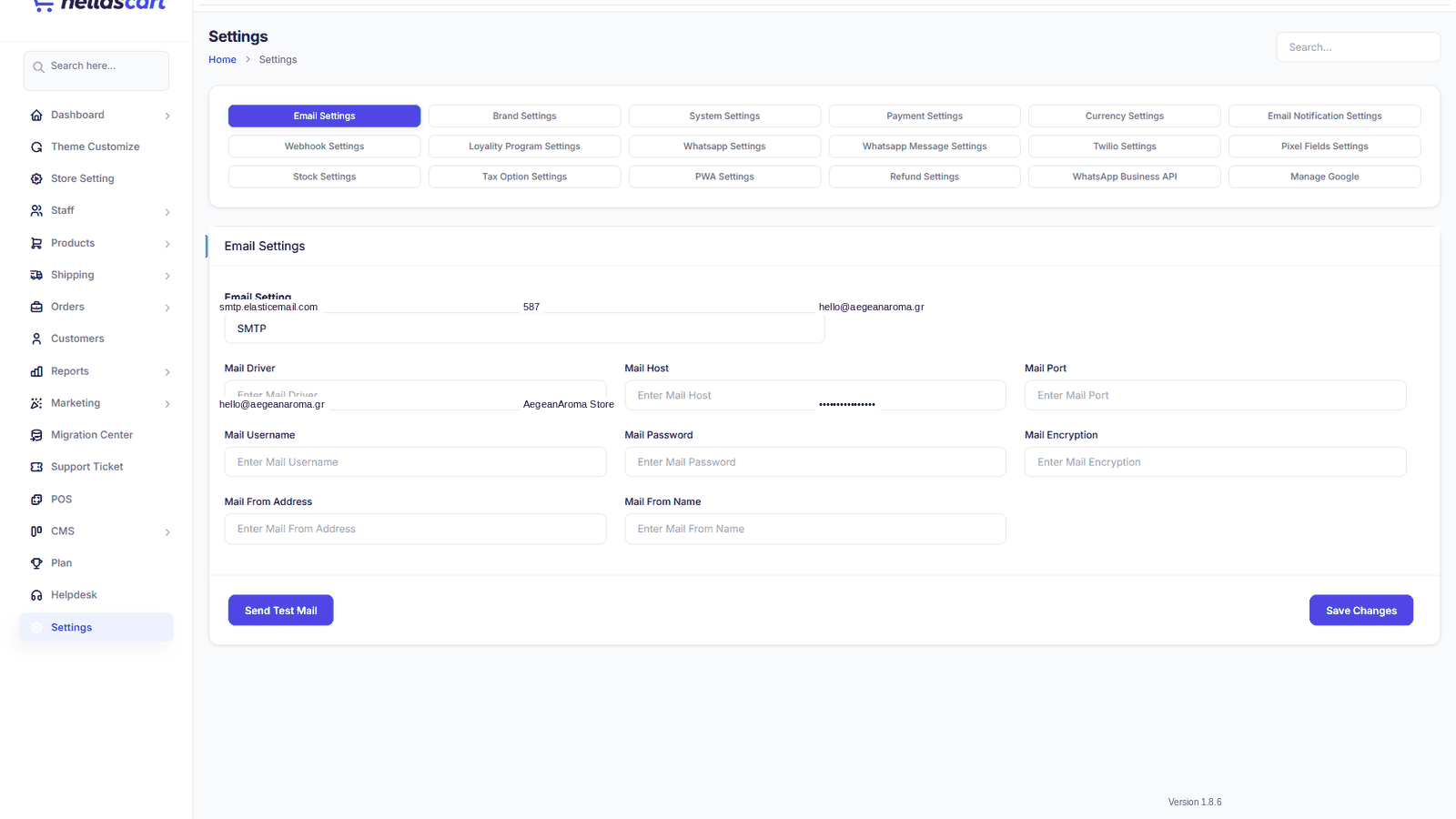
1Mail Host
2Port
3Username / Password
4From Address & Name
5Save + Send Test Mail
WarningIf the test mail fails, customers will not receive order emails even though orders may still work. Fix email before you launch.
Payment Settings
Turn on the ways customers pay you — cards, wallets, cash on delivery and bank transfer. HellasCart supports many gateways such as Stripe and PayPal.
- Open Settings → Payment Settings.
- Find your gateway, toggle it On and enter its keys.
- Enable at least one offline method too (like Cash on Delivery).
- Click Save, then place a small test order.
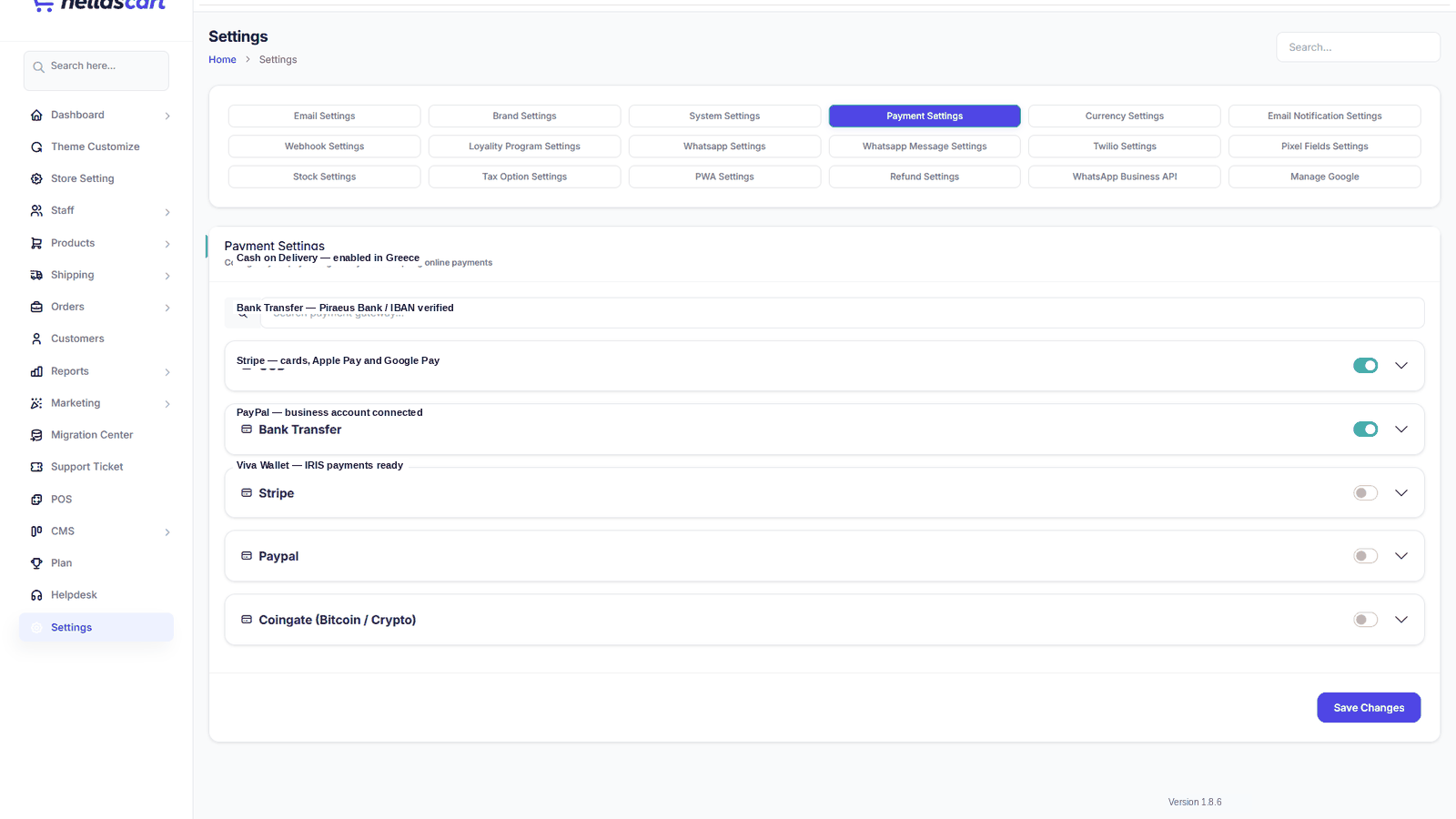
1Gateway Name
2On / Off Toggle
3API Key Fields
4Cash on Delivery
5Save Button
Best PracticeOffer at least one online method and one offline method so every customer can pay. Keep all secret keys private — never share screenshots that show them. HellasCart stores use the Euro (€) by default.